

Downloads
How to add downloads, follow them in the list, and find them again later. Torrents have their own guide.
Adding downloads
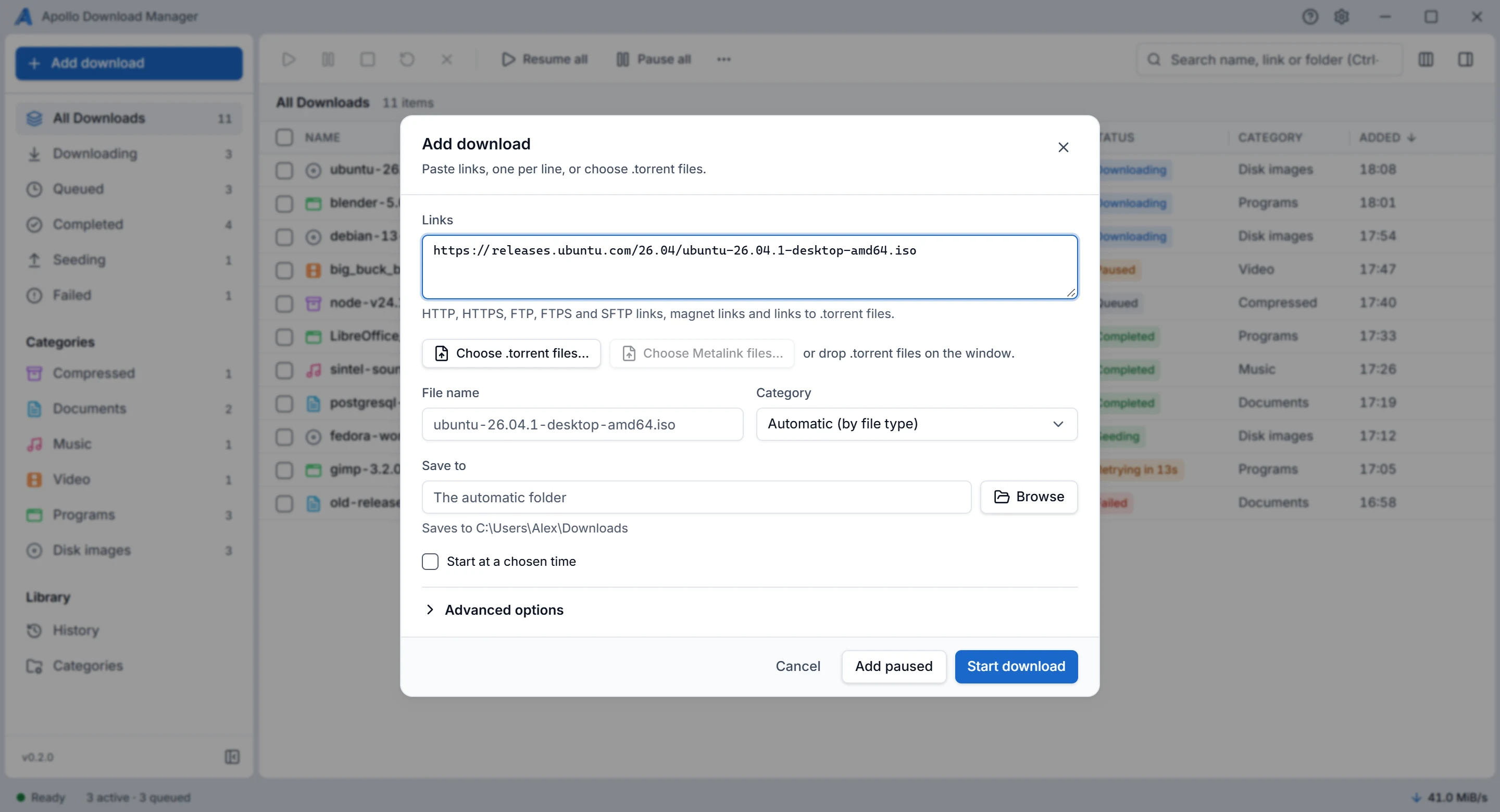
Open the Add dialog with Add download at the top of the navigation, or Ctrl+N. Dropping .torrent files on the window opens it too; other dropped files are ignored, and the window says so. Pasting a magnet or .torrent link anywhere outside a text field also opens it, with the link filled in.
What you can add:
Links, one per line, up to 500 at once:
http://,https://,ftp://,ftps://andsftp://(Protocols and limits).Magnet links, and links to
.torrentfiles: Apollo Download Manager downloads the.torrentfile first, for up to 60 seconds, then adds the torrent..torrentfiles on your computer, with Choose .torrent files….Metalink files (
.metalink,.meta4) on your computer, with Choose Metalink files…: each adds every file it lists, in its subfolders inside the chosen folder. Metalink must be on in Settings, Advanced; while it's off, the file is refused with the reason (Protocols and limits).
A link Apollo Download Manager can't download is refused in the dialog, with the reason, for example "Only http, https, ftp, ftps, sftp and magnet links are supported." Links with spaces or control characters are refused too.
Before you add, the dialog shows:
The file's name. You can type another one; Apollo Download Manager keeps the link's file type at the end.
The category and folder Apollo Download Manager chooses from the file type (Categories). You can choose others.
A folder that doesn't exist yet: Create this folder makes it.
A name already taken in that folder, as a warning.
Options for the download, under Advanced options:
| Option | What it does |
|---|---|
| Connections | The most connections this download may use. Apollo Download Manager starts with all of them and keeps those that make it faster |
| Speed limit | This download's own limit, on top of the global one in Settings. Under a limit, Apollo Download Manager uses only the connections that reach it, and the details say so |
| Referrer, extra headers | Sent to the server, for sites that need them |
| User name and password | The login for the server. For an sftp:// link, which always needs one, the login fields show without opening the options |
| SSH key and its passphrase | For SFTP servers that use keys |
| Checksum | Written like sha-256=… (also MD5, SHA-1, SHA-224, SHA-384, SHA-512). The finished file is checked against it |
| Require encryption (FTPS) | For a plain ftp:// link: refuse to download unless the server encrypts. Without it, the dialog warns that the login and the file can be read on the network |
| Remember this login in the system keychain | Off by default. See Logins |
Start download adds the download to the queue, which starts it as soon as Settings, Queue and performance allows; Add paused adds it without starting it.
After you choose Start download or Add paused:
A name already taken: choose Keep both (rename) or Skip. Apollo Download Manager never replaces a file that is already there.
A link added before: Add anyway starts a separate download, and Show download selects the one already in the list.
Links that failed are listed, each with the reason.
A start time of its own
Tick Start at a chosen time in the Add window, then choose a date and a time, or later right-click a waiting download (queued or paused) and choose Start at…. The download waits until then, even outside the schedule's hours, and the list says Starts Sat 03:00. A time that passed while Apollo Download Manager was closed starts it as soon as it opens, within the number of downloads that run at once. It starts once; Start at… then Clear the time takes the time away, so it starts as soon as it may.
SFTP servers
The first download from an SFTP server stops before logging in and asks Trust this server?, with the server's key fingerprint (SHA256:…). Nothing has been sent yet: no login, no file name.
Check the fingerprint with the server's owner before trusting it. On the server,
ssh-keygen -lf /etc/ssh/ssh_host_ed25519_key.pubprints it. Choose Trust and continue only if they match."The server's host key changed" means the server shows another key than the one you trusted. A reinstalled server does that, and so does an attacker. Apollo Download Manager refuses it every time. Ask the server's owner whether and why the key changed (Troubleshooting).
The download list
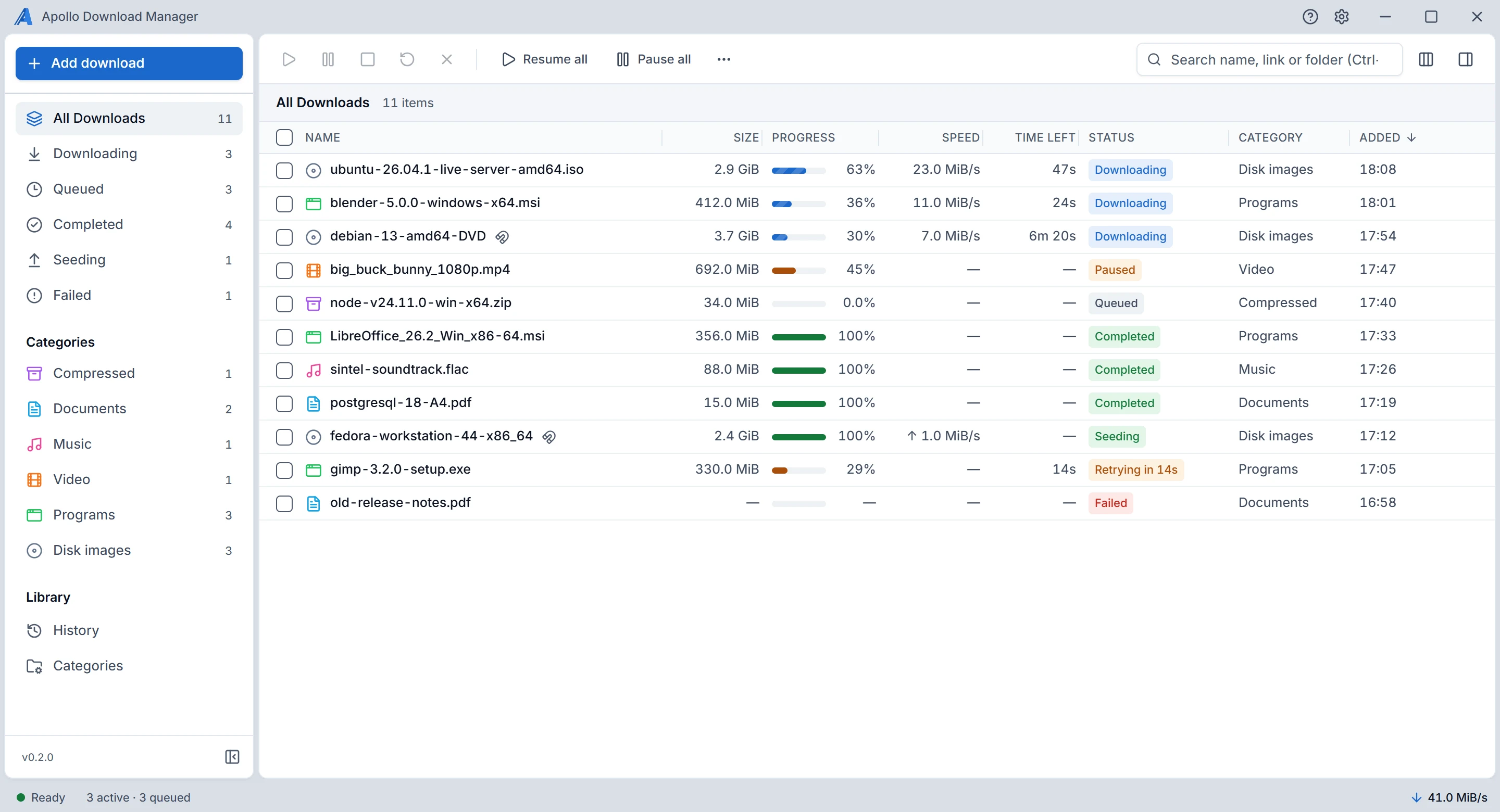
The lists in the navigation are All Downloads, Downloading, Queued, Completed, Seeding and Failed, each with its count. Choose a category below them to show only its downloads. Search (Ctrl+F) looks in the name, the link and the folder. To make room, collapse the navigation to icons with the button at its bottom; the same button, or a drag of its edge, opens it again.
Hovering a download shows a name, folder or category that doesn't fit its column in full, and hovering its status says what the status means and what to do, such as why it failed, or that a double-click opens it. A screen reader reads the same help with the row.
Columns: click a column's name to sort by it, and again to reverse. Choose columns shows or hides any of the 13 columns; Name is always shown, and Reset to default columns brings back the default eight. Drag a column's edge to resize it, or focus the edge and use the arrow keys; Home or a double-click restores its width. Widths are kept.
Selecting: click, Ctrl+click and Shift+click, or the checkboxes; the top checkbox selects every download shown.
Acting: the toolbar and the right-click menu offer what the selected downloads allow: Resume, Pause, Cancel, Retry, Stop seeding, Move to top, up, down or bottom of the queue, Copy link, Copy name, Open file, Open folder, Details, Remove from list and Delete files.
Removing a download still in progress, and deleting files, ask first.
When an action can't apply to every selected download, a message says how many it changed and why the rest weren't.
Keys in the list:
| Key | Does |
|---|---|
| ↑, ↓, Home, End | Move; with Shift, extend the selection |
| Ctrl+A, Escape | Select all, select none |
| Space | Pause or resume |
| Enter | Open the details |
| Delete | Remove from the list (asks first for a running download) |
| Shift+Delete | Delete the files (asks first) |
The right-click menu needs a pointer, as in V1. Its actions are also on the toolbar, in the details panel and on the keys above.
What the statuses mean:
| Status | Meaning |
|---|---|
| Retrying in 1m 30s | The download failed in a way worth retrying; Apollo Download Manager tries again by itself at that time. Waiting to retry when the time isn't known. A server that asks Apollo Download Manager to slow down for 30 s or less isn't shown here: the download stays Downloading, and the details' Connections line says the server asked Apollo Download Manager to slow down |
| No data received | The server stopped sending. Apollo Download Manager resets the connection and tries again |
| Waiting for peers | A torrent with no one to download from yet |
| Needs its login | After Apollo Download Manager restarts, a download that had a login, headers or a key it didn't remember waits for them. Resume or Retry asks for them again |
| Choose files | A torrent waiting for you to choose its files (Torrents) |
| Waiting for network | It failed because there was no network: the server's name didn't resolve, or no connection could be made. It keeps its bytes, takes no place among the downloads running at once, and starts again by itself when the network comes back, however long that takes. Retry starts it now; Cancel stops it. Listed under Queued. Turn this off in Settings, Queue and performance |
Speed and time left show only while data arrives. Avg. speed is the average while the download ran, shown once data has arrived, and Started is when it first ran. A notice above the list says when the transfer engine isn't running, so waiting downloads aren't mistaken for stuck ones.
The details panel
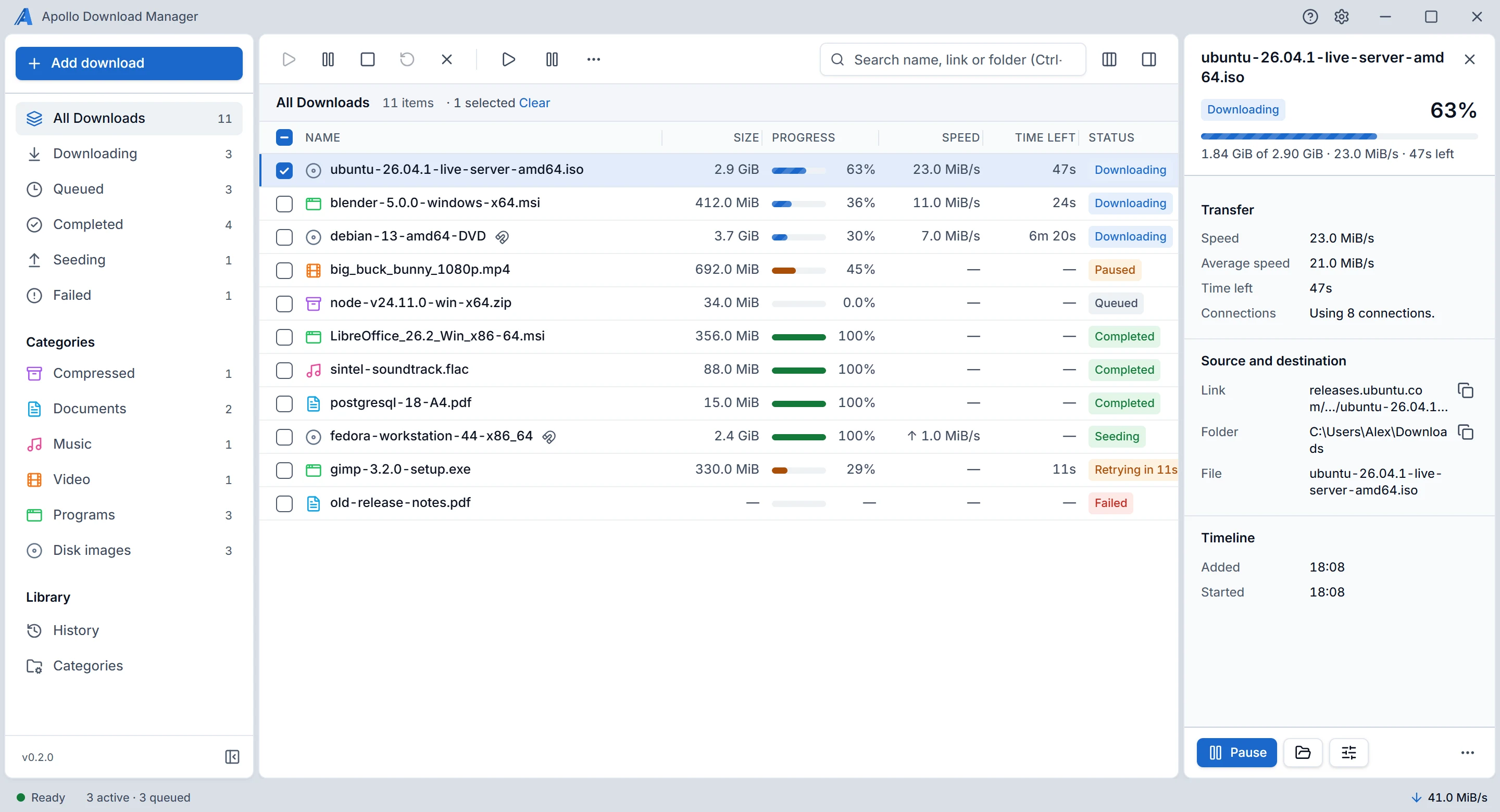
Open it by double-clicking a download that isn't finished, pressing Enter, the panel button on the toolbar, or Details in the right-click menu. It stays open, at its width, until you close it.
What it shows: progress, speed and time left; the connections in use, how many the download may use and what holds it back; the error and what to do about it; whether the file was verified against a checksum; when it was added, started and finished; for a torrent, its peers, seeds, upload and time seeding.
It stays on its download: if the search hides it, or it leaves the list, the panel says so rather than switch to another one.
Changing a download: its category, its speed limit, and its connections, which change while it runs, with no restart.
Open file and Open folder, for a finished download. Double-clicking a finished download opens its file. Opening a program (an
.exe, or an executable file on Linux) asks first. Open folder selects the file, or opens the folder if the file is gone.
The history
History, in the navigation's Library, lists every finished download, newest first, 100 a page, including those removed from the list: how each ended and, for a failure, why.
Search it, and filter it by completed, failed or cancelled.
Again opens the Add dialog with the entry's link.
Remove selected and Clear history (which asks first) forget entries only. Files on disk are never touched, and a download still in the list stays there.
How long entries are kept is in Settings, History and storage: 90 days and 10,000 entries by default; 0 days keeps them forever.
Files and folders
No file is ever overwritten. If a file appears at a download's name while it downloads, from V1 or any other program, Apollo Download Manager keeps it and stops the download: "the destination file already exists; it is never replaced".
While downloading, the data goes to
<name>.vdmpartbeside the final file, which gets its name only once the download is complete and, with a checksum, verified.Look-alike names: two names that look the same but are typed differently are two files. On Windows, names that differ only in upper and lower case are the same file.
Long paths: downloads into folders deeper than Windows' old 260-character limit work.
Delete files removes only that download's own file and its unfinished part, inside its folder. A link in their place (a symbolic link or a junction) is never followed, and what it points to is never touched.
Cloud-sync folders such as OneDrive work as ordinary folders.
Logins, headers and keys
Passwords, custom header values (such as cookies or tokens) and SSH key passphrases are secrets. Apollo Download Manager never writes them to its database, its saved progress or its log.
Remember this login in the system keychain, in the Add dialog and the login window, is off by default. Ticked, the download's login is kept in Windows Credential Manager or the Secret Service on Linux (GNOME Keyring, KWallet), and removing the download deletes it there.
When the server refuses the login: the window Log in to download opens, says the server refused it, and asks for the user name and password (and, for SFTP, the key). Log in and retry tries again with them; Not now leaves the download Failed. It opens for a refused login only (HTTP's 401, FTP's or SFTP's refused login), never when the server lets you in but not to the file, and never for the proxy's login, which is in Settings, Proxy.
After a restart: a download whose login was remembered carries on. Otherwise it comes back paused, as "Needs its login", and asks for it again when you resume it, as V1 did.
No keychain (for example a minimal Linux without a Secret Service): Apollo Download Manager says "The system keychain isn't available, so the login wasn't saved." The download still works until Apollo Download Manager closes.
If Apollo Download Manager closes suddenly
After a crash, a forced quit or a power cut, the downloads come back when Apollo Download Manager starts again and continue from their last saved progress. Apollo Download Manager saves progress every 2 seconds or 16 MiB, and when you pause.