

Categories
Categories sort downloads by file type, and can give each type its own folder. Open Categories in the navigation's Library.
The built-in categories
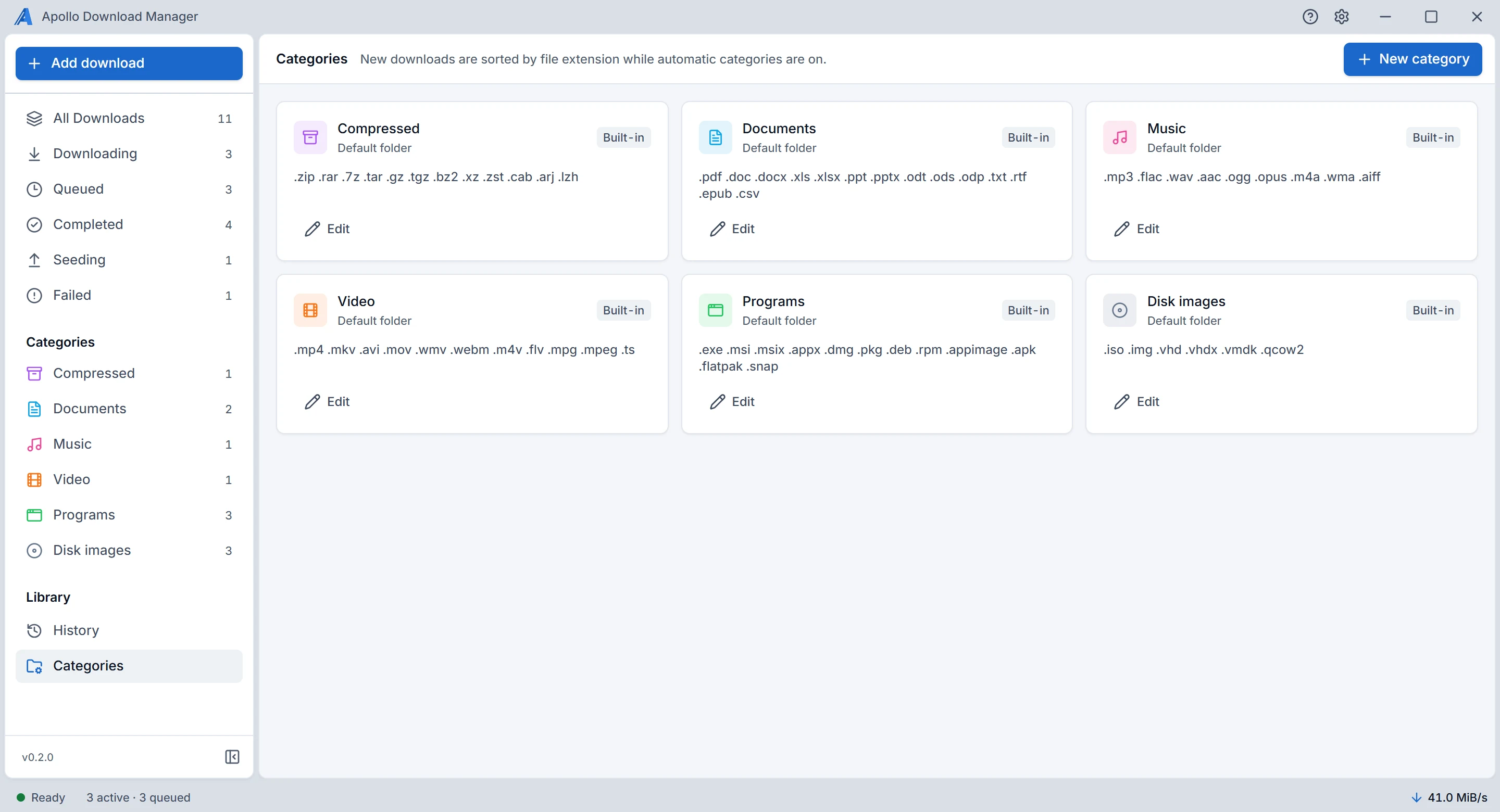
| Category | File types |
|---|---|
| Compressed | zip, rar, 7z, tar, gz, tgz, bz2, xz, zst, cab, arj, lzh |
| Documents | pdf, doc, docx, xls, xlsx, ppt, pptx, odt, ods, odp, txt, rtf, epub, csv |
| Music | mp3, flac, wav, aac, ogg, opus, m4a, wma, aiff |
| Video | mp4, mkv, avi, mov, wmv, webm, m4v, flv, mpg, mpeg, ts |
| Programs | exe, msi, msix, appx, dmg, pkg, deb, rpm, appimage, apk, flatpak, snap |
| Disk images | iso, img, vhd, vhdx, vmdk, qcow2 |
Built-in categories can be changed with Edit, but not deleted.
Your own categories
New category asks for a name (up to 40 characters), a colour, an icon, the file extensions it takes (separated by spaces or commas, such as zip 7z rar), and optionally a folder to save to. A category without extensions takes only downloads you give it yourself.
Deleting a category asks first. Its downloads are left without a category; no file is moved or deleted.
Where a download goes
When you add a download, Apollo Download Manager chooses:
The category: the one you choose. Otherwise, with Sort into categories by file type on, the one for the file's extension; a torrent takes the category of its largest file.
The folder: the one you choose. Otherwise the category's own folder. Otherwise the default download folder, in a subfolder named after the category when A folder for each category is on.
Both switches are in Settings, Downloads, and both are on by default. A missing category subfolder is created when you add the download; any other missing folder is offered in the Add dialog as Create this folder.
You can change a download's category later, with Edit… in its details panel. Its file then moves to the folder a new download of that category would get, and a message says where it went:
A finished download moves at once.
An unfinished one, paused, waiting or failed, moves its partial file and carries on from where it was, in the new folder.
A running one is paused, moved, and carries on by itself.
A name already taken in the new folder is never replaced: the moved file gets the next free name, such as
report (1).pdf.Moving to another drive copies the file first, and removes the original only once the copy is complete.
A torrent moves too, and keeps seeding from its new folder. If a file or folder with its name is already there, the torrent stays where it is, and the message says so.
A file that can't move, because it was deleted or its drive is gone, stays where it is. The category still changes, and the message says why.